
Process
From Figma to project display with AI
Why can't we tell AI to make a screenshot from Figma into a real project screen, and the fastest 4-step process I use: config design system, UI guideline, screenshot + MCP, copy CSS & refactor — reaching ~95%+ compared to design.
22/06/2026 · 4 min read · Lê Huy Thái
To be honest, I haven't found a way (or maybe I'm just stupid) to tell the AI to make a shot from Figma fly straight into the side of the project screen with current AI tools. I'm not talking about a play page or a small project — but a real company project, teamwork. Actual process
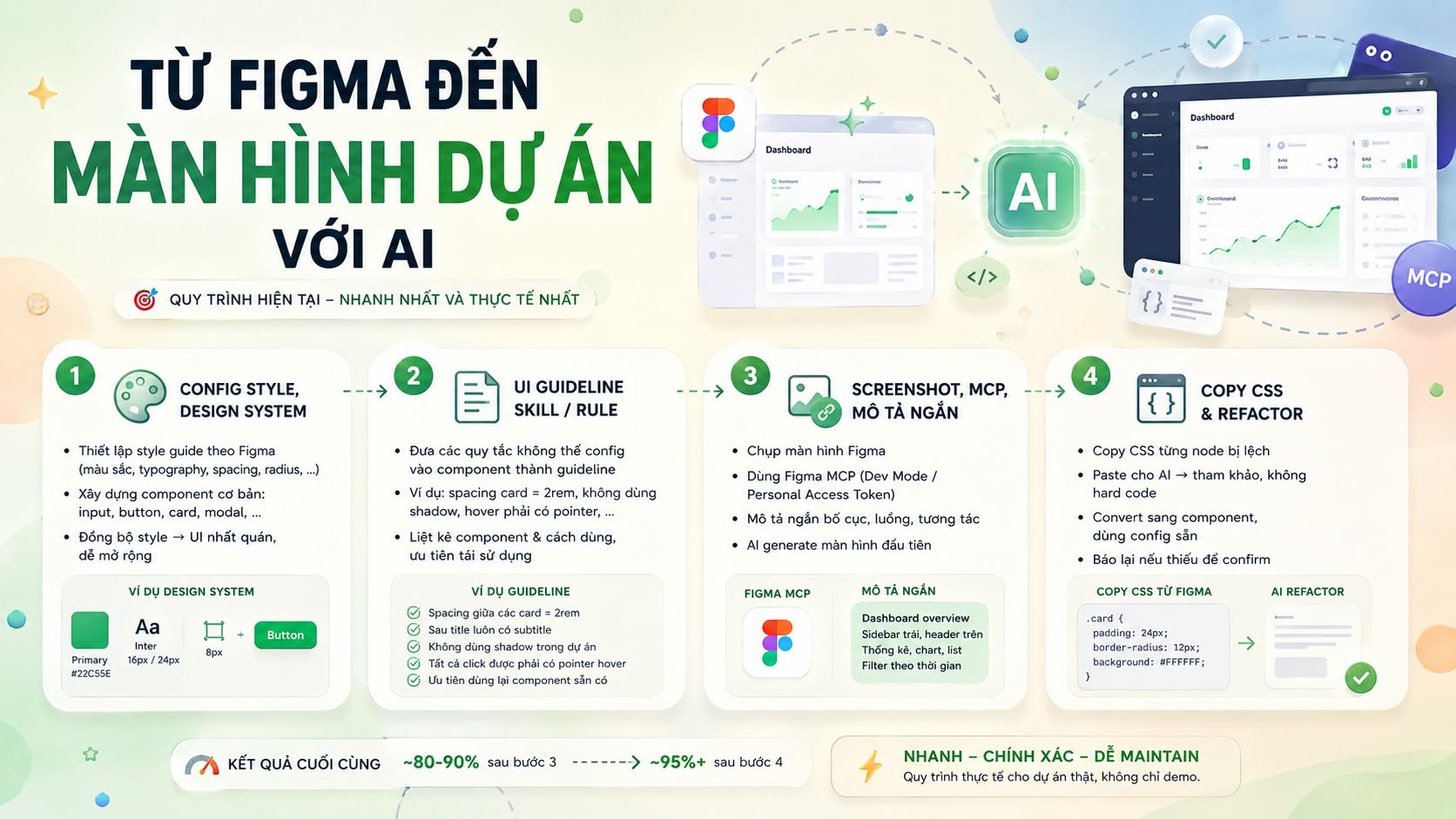
Why can't we "one-shot" Figma → code?
- Gen không giống hẳn — kể cả dùng MCP giỏi cũng chỉ cỡ 40–60%; The remaining 30–40% makes your hands very tired.
- Less code reuse — do whatever you see, don't know if this or that is already available.
- Inbuilt config/style deviations — there are small deviations that can be seen immediately.
After trying all kinds of methods, I found the process below is the fastest for me.
- 011. Config style & design system
The project needs to have standard style configuration according to Figma: primary color, secondary color, background, font sizes, spacing... Basically, the designer still has to build it, I bring it back to set up (or tell AI to set it up). Or go from the same style set to synchronize.
Small design system components (input, button, card...) are also tried to be set up from scratch and configured according to the general style.
If you look at a design and the buttons in each place have an unrelated style, then maybe the design itself is wrong.
- 022. UI Guideline (Skill / Rule)
There are things in the design that look very conventional but cannot be put into component/config — then put them here. For example:
- Spacing of cards is always 2rem.
- After the big title is always the subtitle.
- Do not use shadows throughout the project.
- Everything that is clickable must have a pointer when hovered.
Also list which components do what to avoid "creating something already existing". Add rule: must check to see if it is available - if there is, use it, or customize the old one to reduce hard-code and make it easier to maintain.
This helps AI code follow the current style; When you need to be creative, still create within limits.
- 033. Screenshot, MCP, short description
Figma has MCP, configured via Dev Mode or Personal Access Token (but the limit is quite painful). I took photos + let me read through the MCP + briefly described the layout. Combined with the above 2 steps will result in a screen reaching about 80–90% of the design.
Of course you can't eat it right away yet — AI's vision isn't really that smart.
- 044. Copy CSS & refactor
Because the image reading AI + MCP can only partly understand areas that require high precision or have small details wrong. Now each node in Figma can copy CSS: right-click a node in the sidebar > Copy/Paste as > Copy as code > CSS (all layers). Priority should only be given to copying the offending node / each node — copying the whole screen will be very large.
Paste for AI, tell it to refer to this: you cannot hard-code but must convert to components, the packaged rules, and the project's existing config. If something doesn't exist, please report back so I can confirm — hard-code or create new/new config.
Here we reach about 95%+ compared to the design. The remaining prompts continue or adjust manually a few %.
Step 1 do it once. Step 2 — when you see that the AI is too "stupid" or you haven't defined it yet, explain/guide, then tell it to update the guidelines so it doesn't happen again next time.